
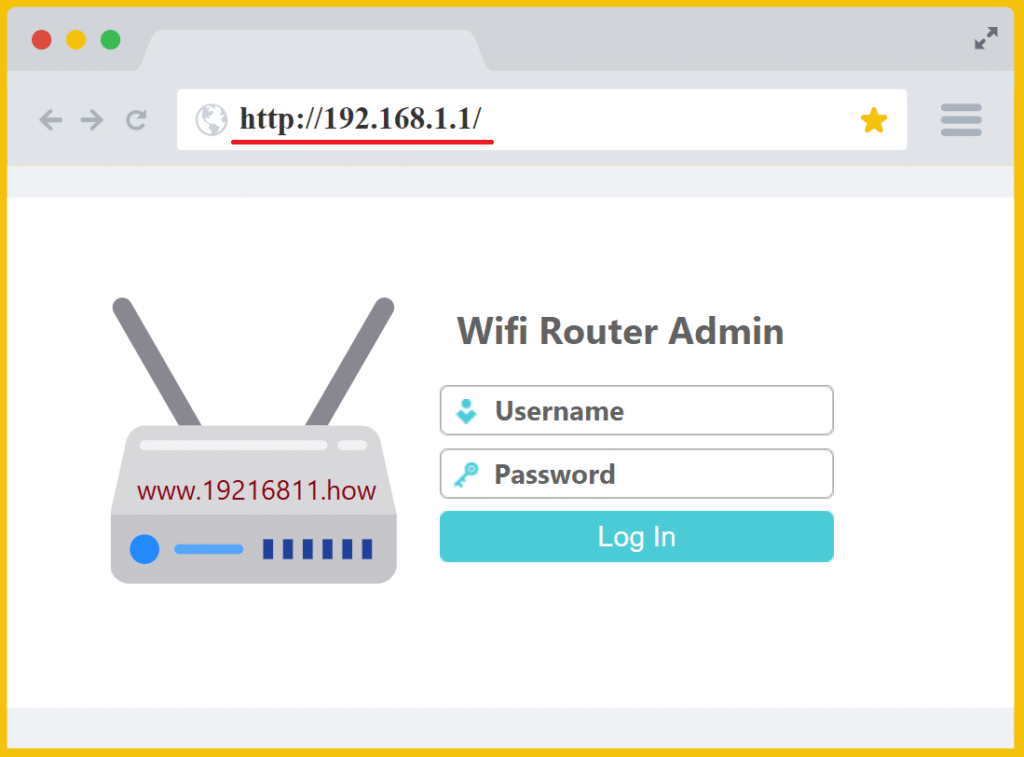
Ever struggled with slow Wi-Fi or forgotten passwords? You’re not alone. Many people face these issues daily. That’s where 192.168.1.1 comes in. This IP address acts as the door to your router’s control center. It lets you fix problems and boost your network.
In this guide, I act as your friendly expert. We cover what 192.168.1.1 is, how it works, and why it matters. You’ll learn step-by-step access, troubleshooting tips, and security best practices. By the end, you’ll manage your router like a pro. Let’s dive in.
What Is 192.168.1.1?
192.168.1.1 is a private IP address. Routers use it as their default gateway. Think of it as your home network’s command hub.
Private IPs stay inside your local network. They come from RFC 1918 standards. This keeps them hidden from the public internet.
Many brands pick 192.168.1.1 as default. It falls in the 192.168.0.0/16 range. That’s over 65,000 possible addresses for home use.
You access it via a web browser. Type http://192.168.1.1. It loads the admin panel. From there, you change settings.
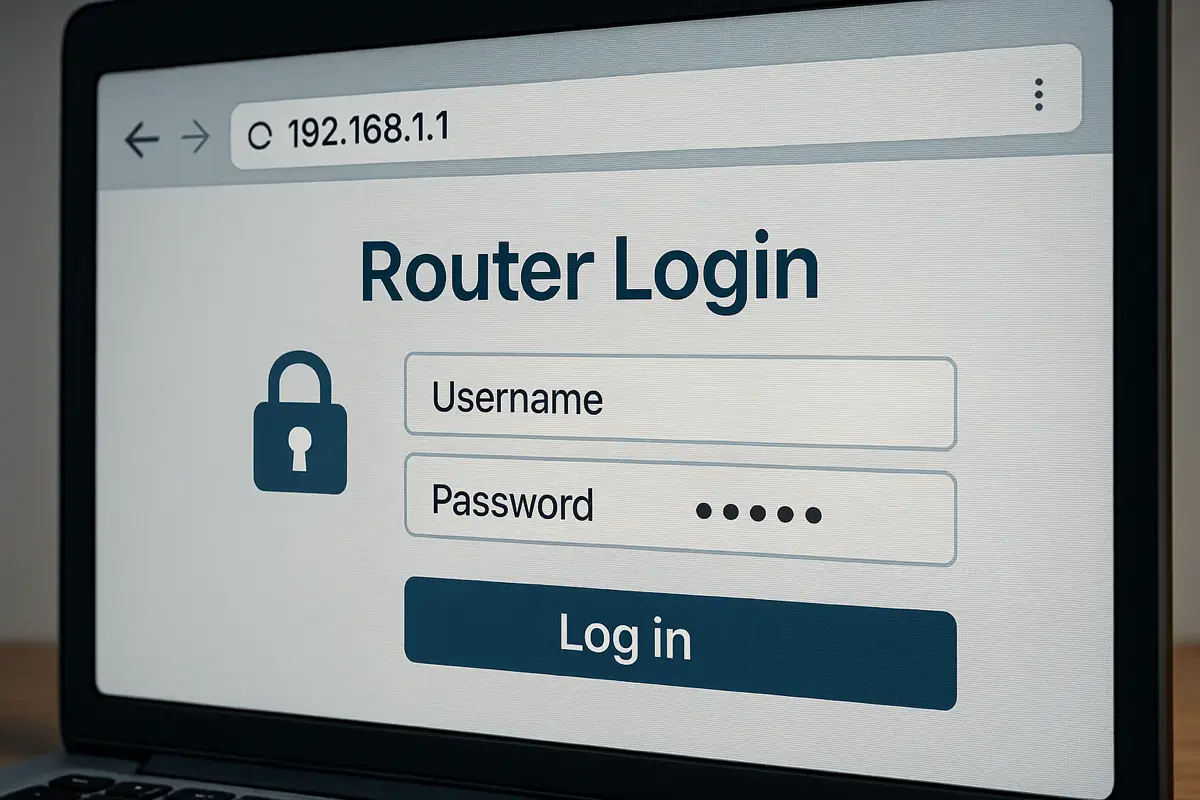
helpdeskgeek.com
How to Access and Change Your WiFi Router Settings (2025 Edition)
Why Do Routers Use This Address?
Manufacturers choose it for simplicity. It’s easy to remember. Brands like Linksys started the trend. Others followed.
Not all routers use it. Some pick 192.168.0.1 or 10.0.0.1. Check your model.
How Does 192.168.1.1 Work?
Your router assigns IPs to devices. It uses DHCP for this. Your computer gets something like 192.168.1.100.
The router itself takes 192.168.1.1. It acts as the gateway. Data flows through it to the internet.
NAT helps here. It translates private IPs to public ones. This lets multiple devices share one internet connection.
When you type 192.168.1.1, your browser connects locally. No internet needed. It pulls up the router’s web interface.
Key Components Involved
- DHCP Server: Hands out IPs automatically.
- Default Gateway: Routes traffic out of your network.
- Web Server: Runs on the router to show the admin page.
Logic dictates this setup prevents conflicts. Private IPs don’t route online. That’s why 192.168.1.1 stays safe inside your home.
Benefits of Using 192.168.1.1
Accessing 192.168.1.1 gives you control. You tweak your network for better performance.
Here are key benefits:
- Change Wi-Fi passwords to keep intruders out.
- Set up guest networks for visitors.
- Update firmware for security fixes.
- Monitor connected devices.
- Adjust bandwidth for priority apps.
- Enable parental controls.
- Optimize channels to reduce interference.
- Restart the router remotely.
Use cases shine in real life. For example, in a busy home, prioritize gaming over streaming. Or block sites during homework time.
One nuance: Overuse can slow things. Limit changes to necessities.
How to Know If Your Router Uses 192.168.1.1
Not sure? Check easily.
On Windows:
- Open Command Prompt.
- Type ipconfig.
- Look for Default Gateway.
On Mac:
- Go to System Settings.
- Click Network.
- Select Wi-Fi.
- See Router under Advanced.
Common brands using 192.168.1.1:
- Linksys
- TP-Link
- ASUS
- D-Link
- Netgear
mordorintelligence.com
Top Wireless Router Companies – Key Players & More
If it’s different, use that IP instead.
Pitfall: Wrong network connection. Ensure you’re on the right Wi-Fi.
Step-by-Step: How to Access 192.168.1.1
Ready to log in? Follow these steps.
First, connect to your network. Use Wi-Fi or Ethernet.
Then:
- Open a web browser like Chrome or Firefox.
- Type http://192.168.1.1 in the address bar.
- Hit Enter.
- Enter username and password. Often “admin” for both.
- Click Login.

youtube.com
How to Access Router Settings (192.168.1.1 Admin Guide) 🔓
Trouble? Try these tips:
- Use http, not https.
- Clear browser cache.
- Disable VPN.
- Try incognito mode.
Example: On a TP-Link router, the page looks blue and simple. Netgear uses green tones.
Humor alert: Don’t type “192.168.l.l”. That’s an “L”, not a “1”. Common mix-up!
Best Practices for Router Configuration
Once in, make smart changes.
Start with basics:
- Change admin password to something strong.
- Update Wi-Fi name (SSID).
- Set WPA3 encryption if available.
Advanced tips:
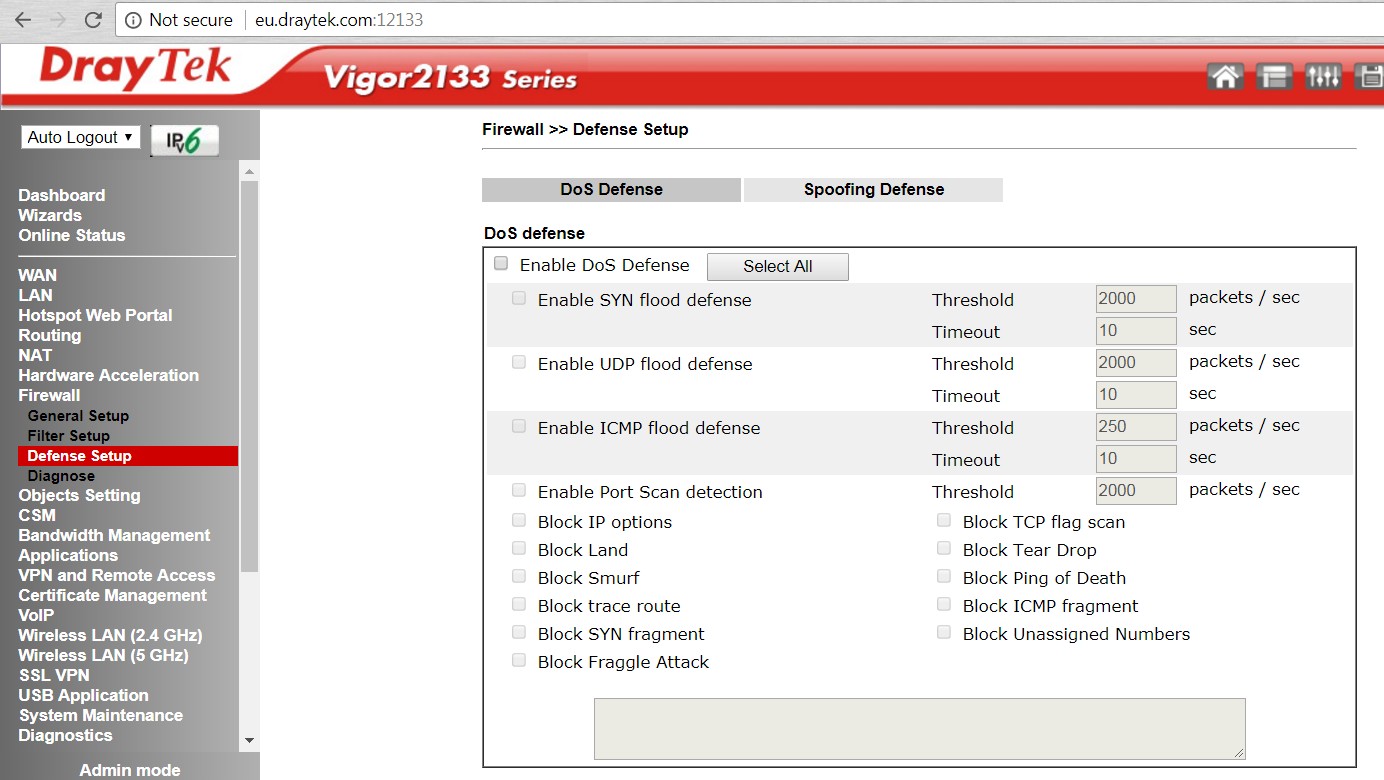
- Enable firewall.
- Disable WPS.
- Set up MAC filtering.
Real-world example: In an office, limit guest access to 2 hours. Prevents overuse.
Nuance: Balance security with convenience. Too strict? Devices won’t connect.
Integrating 192.168.1.1 into Your Daily Workflow
Make it routine.
Check monthly for updates.
Use apps from brands like TP-Link Tether. They access settings via phone.
Workflow example:
- Morning: Check connected devices.
- Evening: Review logs for issues.
Integrate with smart home. Set rules for lights or cameras.
Pitfall: Forget to log out. Always do after changes.
Maintenance and Troubleshooting Common Issues
Routers need care.
Update firmware regularly. Go to the manufacturer’s site.
Troubleshooting checklist:
- Page won’t load? Check connection.
- Wrong password? Reset router.
- Slow speeds? Change channel.
- Can’t connect? Restart everything.
- IP conflict? Release and renew IP.
Example scenario: Family streaming lags. Access 192.168.1.1. Enable QoS for video.
Fact: Over 50% of users never change defaults. Don’t be them.
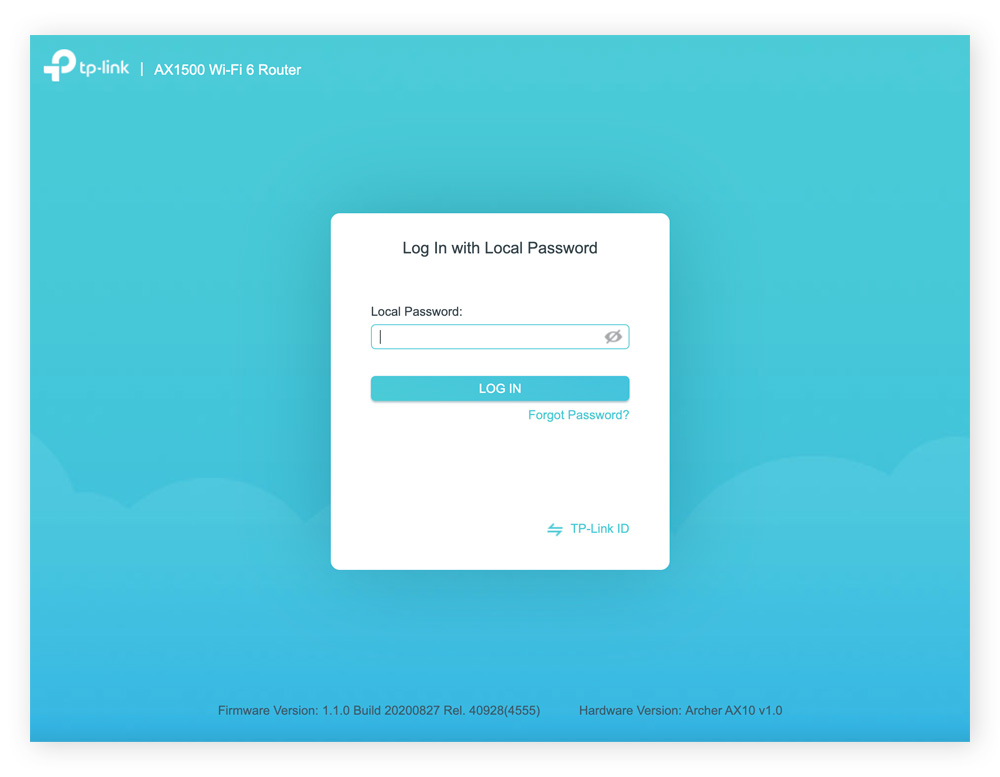
avast.com
How to Log into Your Router and Access Your Settings
Advanced Features in the 192.168.1.1 Panel
Dig deeper.
- Port forwarding for games.
- VPN setup for privacy.
- Bandwidth limits per device.
Best practice: Test changes one at a time.
Case study: A user set up DDNS. Accessed home cams remotely. Secure and handy.
Securing Your Router via 192.168.1.1
Security first.
Change defaults right away.
Disable remote management.
Use strong passwords: Mix letters, numbers, symbols.
Enable auto-updates.
routersecurity.org
Router Security
Checklist:
- Turn off UPnP.
- Use WPA3.
- Monitor logs.
- Disable SNMP if unused.
- Schedule reboots.
Humor: Think of your router as a castle. 192.168.1.1 is the key. Don’t leave it under the mat!
Common Pitfalls and How to Avoid Them
Avoid mistakes.
- Typing errors: Double-check 192.168.1.1.
- Forgetting passwords: Write them down safely.
- Ignoring updates: Set reminders.
- Overcomplicating: Start simple.
Nuance: Factory reset erases everything. Use as last resort.
FAQs
What if 192.168.1.1 doesn’t work?
Check your default gateway. It might be different. Use ipconfig to find it.
Is 192.168.1.1 safe to use?
Yes, it’s private. But secure your admin login.
How do I reset my router password?
Access 192.168.1.1. Go to admin settings. Change it there.
Can I access 192.168.1.1 from my phone?
Yes. Connect to Wi-Fi. Use a browser.
Why does my router use 192.168.1.1?
It’s a standard set by manufacturers for easy access.
What brands use 192.168.1.1?
Linksys, TP-Link, ASUS, D-Link, and Netgear often do.
Bottom Line
192.168.1.1 empowers you. It lets you control your network. Follow this guide to access, configure, and secure it. You’ll enjoy faster, safer internet.
Take action today. Log in and make one change. Your Wi-Fi will thank you.
What challenges do you face with 192.168.1.1? Share in the comments. Let’s discuss.

Shahid Maqsood is an Editor and Content Strategist with 5 years of experience in digital media and content publishing. He holds an MBA and a Master’s degree in Mass Communications, combining business insight with editorial expertise. Shahid specializes in biography writing, technology, and business news — crafting content that is accurate, well-researched, and reader-first. He currently leads editorial strategy at Dot Daily, ensuring every story meets the highest standards of clarity and credibility. Connect on LinkedIn